The Ultimate Guide to Lenguia: Best Practices, FAQs & more!
Welcome to the official guide for Lenguia!
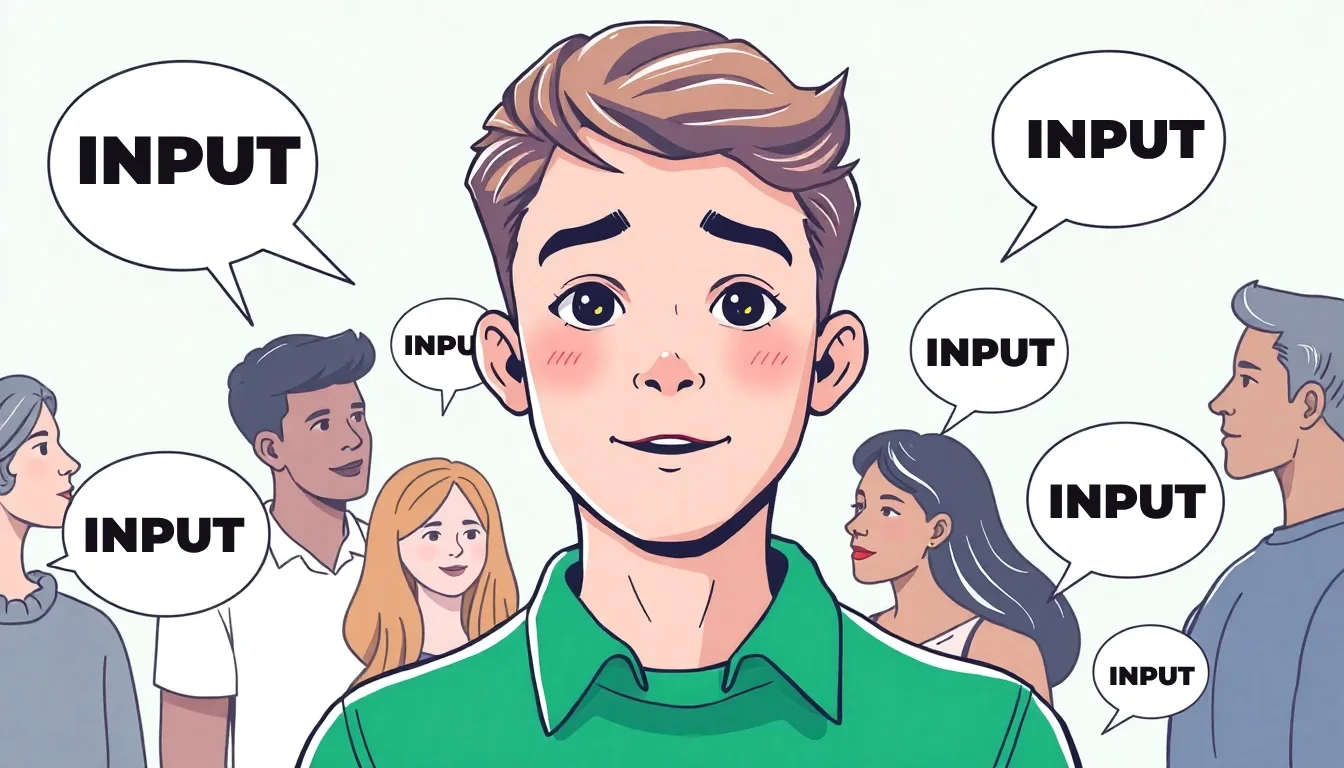
Lenguia is built around the philosophy of Comprehensible Input—the idea that you acquire a language best by understanding content that are slightly above your current level. Whether you are reading stories tailored to your interests, transforming web articles into learning material, or listening to podcasts with transcripts, Lenguia ensures you are always learning naturally and effectively with content that you enjoy so that studying doesn't feel like studying.
This guide is your roadmap to mastering Lenguia's powerful feature with best practices and tips. We'll cover everything from getting started to leveraging advanced tools. this post will help you customize your learning journey for maximum fluency and fun.
Table of Contents
- Quick Tips
- How to Get Started
- Stories
- Content
- Books
- Podcasts
- Flashcards
- Journal
- AI Tutor
- Progress Tracking
- Community & Support
Quick Tips
Before we dive into the details, here are a few universal tips to help you get the most out of your Lenguia experience:
- You don't need to do everything: Lenguia offers a wide range of tools, but you don't need to use all of them to be successful. Some users focus exclusively on reading books, others love the daily stories, and some spend their time refining their output with the Journal. Feel free to mix and match or focus on the features that resonate most with your learning style.
- Smart Flashcards influence your content: When you create a flashcard for a word, Lenguia's AI knows you want to learn it. That word will then appear more frequently in future stories and content to give you more exposure. There are multiple ways to create flashcards for words, phrases, and whole sentences - check out the Flashcards section to learn more.
- Word colors matter: At first, all words will be black—these are new words you are seeing for the first time. As you mark texts as read, these words turn gray, meaning they have been seen before. Lenguia tracks every single word you encounter (check the Progress Page for details). Words that turn green are ones you've created flashcards for; clicking them opens the flashcard instantly.
- Study multiple languages: Your subscription covers all supported languages. You can switch languages anytime in the Settings menu. Don't forget to adjust your proficiency level (Beginner, Intermediate, Advanced) for each new language, as your skills likely vary.
- Finding your level: Unsure if you're a beginner or intermediate? The levels roughly correspond to CEFR standards: Beginner (A1-A2), Intermediate (A2-B2), and Advanced (B2-C1). We recommend generating a few stories at the Beginner or Intermediate level. If it's too easy or too hard, adjust your settings accordingly.
- Focus on words, not time: While Lenguia allows you to set time goals, we recommend focusing on the Total Words Consumed. Reading speeds vary, so tracking the actual volume of input is a more accurate measure of progress. Set a goal like reading one article a day or hitting 1,000 words rather than just watching the clock.
- Review your progress: Re-reading old stories or web articles is a great confidence booster. Come back to content after a few months to see how much easier it feels. It's a tangible way to feel your progress.
- Focus Mode (Desktop): On desktop, you can enable "Focus Mode" by clicking the light bulb icon in the top right menu. This hides distractions and lets you immerse yourself fully in the text.
How to Get Started
When you first land on the dashboard, you might feel a bit overwhelmed by the variety of features. Lenguia doesn't force you into a rigid "daily study plan." Instead, it gives you the freedom to choose how you want to learn.
Generally, there are two main ways to use Lenguia:
- Use provided content: Read and listen to the daily AI-generated stories and explore language learning podcasts.
- Bring your own content: Import web articles, paste texts, or upload books (EPUBs & PDFs) to turn any material into a learning resource. These resources can be auto-translated and auto-simplified to your level or read in the original versions.
Recommendation for your first session: To get familiar with the platform, we recommend starting with one of the daily stories generated based on your interests and level. This is the perfect sandbox to try out the core features:
- Click on words or sentences to see instant translations.
- Create your first flashcard for a new word you want to remember.
- Generate audio to listen to the story while you read.
- Mark sections as read to see your word counts update and your "seen" words turn gray.
Once you've completed your first story, you're ready to explore everything else Lenguia has to offer. The following sections provide a deep dive into each feature, helping you build a routine that fits your learning style — whether that means devouring entire books, catching up on news articles, lots of listening with parallel transcript reading or practicing conversation with our AI tutor.
Stories
Stories are at the heart of Lenguia. They are designed to be engaging, relevant, and perfectly matched to your proficiency. Whether you are a beginner just starting to grasp basic sentence structures or an intermediate learner looking to expand your vocabulary, stories provide the ideal context for language acquisition. The goal is to immerse you in the language through narratives that you actually enjoy reading, making the learning process feel less like studying and more like entertainment. By regularly engaging with these stories, you'll naturally internalize grammar patterns and new words without the need for rote memorization.
How it works
- Daily Dose: You receive 3 fresh stories every day, tailored specifically to your current level and the interests you've selected in your settings.
- Create Your Own: Want to read about something specific? You can generate custom stories on demand. In the creation view, you can set the topic, difficulty, and length.
- The "Focus" Field: When creating a custom story, use the Focus field to guide the AI. Think of it as a custom prompt. You can ask for a story that focuses on a specific grammar point (e.g., "Use the past tense") or a niche vocabulary set (e.g., "A story about baking a cake using detailed cooking terms"). This flexibility allows you to target your weak spots in a fun, narrative context.
Best Practices
- Mark Progress: Always mark sections as read as you finish them. This updates your word statistics and changes "new" (black) words to "seen" (gray). If you finish a story, click the checkmark icon at the top to mark the entire text as read.
- Organize: Bookmark stories you love so you can easily find them later. Use the filters to sort through your library and find content that matches your current mood.
- Diversify Interests: Select a wide variety of interests in your settings. This ensures your daily stories cover different topics, exposing you to a broader range of vocabulary naturally.
FAQ
- I'm studying two languages, but I only get daily stories for one. Why?
- Stories are generated at a specific time each day based on your current active learning language. If you want stories for a specific language (e.g., Japanese), make sure to switch your profile to Japanese before you finish your session for the day.
- I have too many unread stories piling up. Can I stop them?
- Yes! If you have a backlog or just want a break, you can temporarily pause the daily story generation in your Settings.
Content
The Content feature is where you can bring the endless resources of the internet into your structured learning environment. It allows you to turn almost any text or video into a lesson perfectly suited to your level.
How it works
- Import Articles: Paste a URL from a blog, news site, or Wikipedia. Lenguia will extract the text and, if you choose, simplify and translate it to match your proficiency.
- Custom Text: Have a text file or a snippet you want to study? Paste it directly into the tool to analyze it with Lenguia's features.
- Upload Audio: Upload your own audio files and Lenguia will automatically generate an interactive transcript. The transcript syncs with the audio, highlights the active paragraph as you listen, and lets you click on any word to see its translation and create flashcards.
- Flexible Difficulty: When adding content, you can choose to keep the "Original" difficulty if you want to challenge yourself with authentic material, or select Beginner, Intermediate, or Advanced to have AI simplify the language for you. Note: Original content does not support Furigana in Japanese and Pinyin in Mandarin. Original content will also not be auto-translated, so it has to be in your target language. Also, unlike generated stories, original content is not influenced by your flashcards, meaning your target words won't appear more frequently than usual.
Best Practices
- Follow Your Interests: Use the "Import Article" feature to read about your hobbies in your target language. If you love cooking, import a recipe blog. If you follow tech news, import an article from a tech site. Import content you would want to read anyway, but turn it into simplified versions in your target language.
- Organize: Bookmark articles you love so you can easily find them later. Use the filters to sort through your library and find content that matches your current mood.
FAQ
- My article doesn't get created, I get an error. Why?
- Some websites have strict security settings that prevent us from extracting their content automatically. If this happens, try copying the text manually and using the "Paste your own Text" option instead.
Books
The Books feature allows you to import entire e-books (EPUB or PDF) into Lenguia. This is perfect for long-form reading and immersing yourself in a cohesive story. You can upload a book in any language and have Lenguia translate and simplify it into your target language.
How it works
- Upload: Go to the Books page and upload your file (EPUB or PDF, max 50MB).
- Customize: Choose your desired output level (Beginner, Intermediate, Advanced, or Original).
- Read: Lenguia processes the book chapter by chapter. You can click on any word to see translations, add it to your flashcards, just like in all the other features.
Best Practices
- Re-read Favorites: A great way to start is by uploading a book you have already read and loved in your native language. Since you already know the plot, you can focus entirely on the language without getting lost.
- Progressive Difficulty: Try reading a book at a simplified "Intermediate" level first. Once you finish it, challenge yourself by reading the same book again in its "Original" difficulty.
- Level: Books are best suited for intermediate-level learners and up. Beginners can make better use of the shorter stories and articles, whereas more advanced learners can immerse themselves into full books to get extensive input.
FAQ
- What file formats are supported?
- Currently, we support EPUB and PDF files (max 50MB).
- Can I upload a book in English and read it in Spanish?
- Yes! Lenguia can translate the book from its original language into your target learning language while also simplifying the vocabulary to match your level.
Podcasts
Podcasts are one of the most effective tools for improving listening comprehension. Unlike the AI-generated voices in Stories, podcasts expose you to real native speakers with natural cadence, varied accents, and authentic expressions. Lenguia allows you to search for and follow any podcast, automatically generating an interactive transcript for every episode.
How it works
- Search & Follow: Use the search bar to find your favorite podcasts in your target language. You can follow shows to keep them in your library.
- Interactive Transcript: When you play an episode, Lenguia generates a transcript that syncs with the audio. The active paragraph is highlighted as you listen.
- Click to Translate: Just like in stories and books, you can click on any word in the transcript to see its meaning and create flashcards.
- Auto-Scroll: Enable auto-scroll to keep the current section in view without touching your device.
Best Practices
- Adjust Speed: Click the three dots in the audio player to control playback speed. If you're a beginner, slowing down to 0.8x or 0.9x can make fast speech much easier to understand.
- Navigate by Sections: You can click on any paragraph in the transcript to jump the audio to that point. Use the arrow buttons in the player to skip back and forth between sections.
- Listen & Read, then Listen Only: A powerful technique is to listen to an episode while reading the transcript to build comprehension. Then, come back a day later and listen again without looking at the text. This reinforces what you learned and trains your ears to recognize words purely by sound.
- Use Auto-Tools: Enable Auto-scroll and Auto-mark as read by clicking the gear icon. This allows for a hands-free experience where you can just focus on listening and understanding.
- Find Your Fit: Don't just listen to anything. Dedicate some time to finding podcasts that genuinely interest you and match your level. Search Google or ask an AI assistant for recommendations based on your level and hobbies.
FAQ
- I can't get the transcript, I get an error. Why?
- Occasionally, some podcast hosts block the automated downloading and transcription of their audio files. If this happens consistently with a specific show, we recommend trying a different podcast.
- Can I download the audio?
- Yes! You can download the audio file to listen offline or in another player. However, the interactive transcript features are only available within the Lenguia app.
- Does it work with any language?
- Transcription is available for all our supported learning languages. Lenguia automatically detects the language of the podcast to provide accurate text and even generates Furigana for Japanese and Pinyin for Mandarin.
Flashcards
Lenguia's flashcard system is built on a smart Spaced Repetition System (SRS), ensuring you review words at the optimal moment to transfer them to long-term memory. Unlike standard apps, these flashcards are integrated directly with your content.
Creating Flashcards
There are several ways to capture vocabulary:- Single Words: Click on any word in a story or transcript to see its translation and add it to a deck.
- Sentences:
- Desktop: Hover in the space between words. When the sentence highlights, click to get the full translation and create a card.
- Mobile: Use the menu at the bottom to switch between "Word" and "Sentence" selection modes.
- Phrases (Multi-select):
- Desktop: Right-click individual words to mark them (they will get a green border). Once the phrase is selected, left-click one of them to trigger the creation box.
- Mobile: Long-press a word to mark it, then long-press subsequent words. Tap a marked word to finish.
- Manual Creation: Click the plus (+) icon in your Decks view. You can type words in your target or native language to generate cards.
Studying & Editing
- Study Modes: Lenguia offers multiple ways to review your cards, each serving a different purpose.
- Recognition (Target → Native): Great for beginners. Seeing the foreign word and recalling the meaning builds passive vocabulary, which is crucial for reading comprehension.
- Recall (Native → Target) & Production: Harder but more effective for active usage (speaking). Use this when you want to master a word completely.
- Listening: Plays the audio without showing the word. Essential for training your ear to parse spoken language.
- Cloze Deletion & Rescramble: Shows a sentence with the target word missing. This is excellent for learning words in context and understanding grammar.
- Edit Cards: When you navigate to your decks and click on the pencil icon you can customize translations, example sentences, and even the card image. You can regenerate AI images or upload your own for better memory associations.
- Deck Settings: You can edit the daily limits for each deck by clicking the pencil icon on the deck.
Best Practices
- Don't Overdo New Cards: It's tempting to add 50 new cards a day, but remember: every new card becomes a review tomorrow, next week, and next month. We recommend setting your "New cards per day" limit to 5–20. This ensures your daily review pile remains manageable, preventing burnout.
- Prioritize "Total Reviews": Consistency beats intensity. If you have limited time, focus on clearing your Review queue before adding new cards. This maintains the strength of the memories you've already built.
- Mix Your Methods: Don't stick to just one study mode. Use Recognition for new decks to build confidence fast, then switch to Recall or Cloze Deletion to deepen your understanding.
- Personalize Images: If an auto-generated image doesn't stick, regenerate it or upload a photo that has personal meaning to you.
FAQ
- It says "0 cards" but I know I have cards in my deck. Why?
- This number refers to cards due for review right now, not the total number of cards in your deck. The Spaced Repetition System only shows you cards when you are about to forget them. If it says "0 cards," it means you are all caught up for the day!
- How many words should I add when reading?
- Don't try to add every single unknown word—that's the fastest way to get overwhelmed. Instead, be selective. Only create flashcards for words that appear frequently or seem particularly useful for communication. If a word only appears once in a blue moon, you can skip it for now.
- Why isn't "Typing" mode available for my language?
- Some modes like Production (typing) are disabled for languages with complex scripts (like Japanese or Mandarin) to streamline the study flow.
Journal
The Journal is where you transition from passive learning (reading/listening) to active production (writing). It's designed to be a stress-free environment where you can express yourself and get instant feedback without fear of judgment.
How it works
- Choose a Topic: Select from the "Topic of the Day," browse general topics by level, or choose "Custom Topic" to write about whatever is on your mind.
- Instant Corrections: As you type, Lenguia analyzes your sentences. When you finish a sentence, the AI reviews it and highlights corrections in orange.
- Compare & Learn: You see your original text and the corrected version side-by-side (or overlayed). This immediate feedback loop helps you notice grammar patterns and unnatural phrasing instantly.
- Flashcard Integration: Just like in stories, you can click on any word in your corrected entry (including the words the AI supplied for you) to see its translation and create a flashcard.
Best Practices
- Don't Fear Mistakes: The goal is communication, not perfection. Write freely and let the AI handle the polish.
- The "Mix" Technique: If you get stuck on a word, don't stop writing to look it up. Just write it in English (or your native language) and keep going. Seeing the correct word in the context of your own thoughts is one of the most powerful ways to learn vocabulary.
- Use the Tutor for Inspiration: If you have writer's block, ask the AI Tutor: "Give me 5 bullet points or questions to write about regarding [Topic]." This turns a blank page into a guided Q&A session.
- Review Your Corrections: Don't just look at the orange text and move on. Take a second to understand why it was corrected. Is it a conjugation error? A wrong preposition? This mindfulness accelerates your grammar acquisition.
FAQ
- How often should I write?
- Consistency is key. Even 10-15 minutes a day can lead to massive improvements in your active vocabulary and sentence formation speed over a few months.
- Can I save my entries?
- Yes, all your entries are automatically saved. You can revisit them anytime to track your improvement over time.
- Is the Journal suitable for beginners?
- We generally recommend the Journal for Intermediate and Advanced learners who are ready to transition from passive input to active output. If you are a complete beginner, you might find writing frustrating because you lack the core vocabulary. Focus on consuming more Stories and Content first to build up your word bank, then jump into the Journal when you feel ready to express simple thoughts.
AI Tutor
The AI Tutor is your on-demand language partner, available 24/7 to answer questions, correct your grammar, or just chat.
How it works
- Ask Anything: Type any question about grammar, vocabulary, or culture. For example: "What is the difference between 'ser' and 'estar'?" or "How do I order coffee politely?"
- Use Examples: Not sure what to ask? Click the "Examples" button to see template questions like "Explain this grammar concept," "Correct my mistakes," or "Quiz me on..."
- Analyze Content: You can copy a section from a story, book, article or podcast transcript and paste it into the chat. Ask the tutor to break down the grammar, explain the sentence structure, or even generate a quick quiz based on that text.
- Monolingual Mode: Toggle the language switch to force the AI to reply only in your target language. This is fantastic for immersion and practicing reading comprehension once you reach an intermediate level.
Best Practices
- Your Study Copilot: Think of the tutor as a knowledgeable companion sitting next to you. It's there when you get stuck or curious, but you don't have to use it constantly.
- Minimize Distractions: If you want to focus purely on reading or listening, you can minimize the chat window so it doesn't distract you. It's just a click away when you need it again.
- Roleplay: Ask the AI to act as a waiter, a police officer, or a new friend. This simulates real-world scenarios in a safe environment.
FAQ
- Is there a limit to how much I can chat?
- No! You can chat as much as you want. The AI Tutor is always ready to help.
- Does the tutor know what I'm reading?
- No, the AI Tutor doesn't have direct access to the story or article you are currently viewing, nor does it know the specific features of the Lenguia platform. To ask about a text, you need to copy and paste it into the chat.
- What happens with my data?
- Your data is not used to train models. While messages are processed by our AI partners ( OpenAI and Google) to generate responses, they are not tied to your profile, email address, or any other personal identifier. Additionally, your chat history is not stored in Lenguia's database and only temporarily on the servers of OpenAI.
Progress Tracking
The Progress Dashboard is your command center for tracking your journey to fluency. It breaks down your learning into measurable stats so you can see exactly how much you're improving every day.
How it works
- Activity Heatmap: A GitHub-style calendar view shows your daily activity throughout the year. Darker green squares mean more input on that day. This visual streak is a powerful motivator.
- Total Input: The most important metric. This graph shows the cumulative number of words you have read and listened to. The higher this goes, the better your language skills.
- Word Stats: See exactly how many "New" words you've encountered versus "Reinforced" words (words you've seen before). As you progress, you'll see the "Reinforced" number climb faster than "New" words—a sure sign of fluency.
- Level Tracking: Based on your total input, Lenguia estimates your level. Watch yourself climb from Level 1 ("Just Starting") to Level 10 ("Native-like").
- Manual Entries: Did you watch a movie on Netflix or read a book outside of the Lenguia platform? You can manually add that time or word count to your stats so your progress tracking remains complete.
Best Practices
- Focus on Total Words Consumed: While the activity heatmap, streaks, and other stats are fun to look at and help motivate you to keep going, the total amount of words consumed is your key progress marker. This is the most reliable indicator of language acquisition.
- Trust the Process: Don't worry if you feel like you're forgetting words. If your "Total Comprehensible Input" graph is going up, your brain is acquiring the language. Trust the process.
- Log Everything: Use the "Add Time Manually" button for offline study. If you listen to a podcast in your car or read a physical book, log it! Seeing all your efforts in one place is incredibly rewarding.
FAQ
- How accurate is the estimated level?
- It's an estimate based on the volume of input you've consumed, which correlates strongly with language acquisition. However, true fluency also involves output (speaking/writing), so use it as a guideline rather than a strict rule.
- Why do my word counts seem so high?
- Lenguia counts every unique word form separately. This means that every conjugation of a verb (like "hablar", "hablo", "hablas", "habló") is counted as a distinct word. The same applies to different endings for adjectives, nouns with plurals, and other inflected forms. While this might make your numbers look higher, it actually gives you a more accurate picture of the vocabulary variety you're encountering.
Community & Support
Getting Help
- Discord Community: Join our Discord server to connect with other learners, share your progress, ask questions and suggest new features. You can join by clicking on "Discord" in the menu on the left when you are logged in.
- Contact Form: For technical issues, feature requests, or general questions, use the contact form on our website.